
Introduction
You are on a video call, a download is at 90%, and the Wi-Fi icon suddenly shows a warning. why does my Wi-Fi keep disconnecting? A few seconds later it reconnects, and ten minutes after that it drops again.
If you keep asking why does my Wi-Fi keep disconnecting?, you are not alone. Homes now run dozens of connected devices, from phones and TVs to smart plugs and security cameras. Routers built for five devices a decade ago are struggling under that load.
The good news is that random drops almost always have a traceable cause. It could be a crowded channel, an overheating router, an outdated driver, or an aggressive power-saving setting.
This guide explains how a Wi-Fi connection actually breaks, how to tell which part of your setup is failing, and which fixes to try in what order. You will also find a comparison table, a pro-tip on firmware security, and answers to the most common questions.
How Wi-Fi Drops Happen: The Basics
Before changing settings, it helps to know what “disconnecting” really means. Two very different failures look identical on screen.
Wi-Fi Disconnection vs. Internet Outage
In a Wi-Fi disconnection, your device loses its link to the router. The signal icon disappears or the device re-authenticates, and local devices like printers may vanish too.
In an internet outage, the router keeps your device connected, but the router itself has lost its link to your provider. Your device still shows full bars, yet nothing loads.
Test this first: if your phone stays connected to the router but pages fail, call your ISP. If the device itself drops off the network, keep reading.
The Role of the Wireless Handshake
Every device negotiates a session with your router using a process called association and authentication. When packets are lost during that session, the router or device may decide the link is dead and tear it down.
Weak signal, interference, and buggy firmware all cause packet loss. why does my Wi-Fi keep disconnecting This is why very different problems have the same symptoms.
The Most Common Causes of Wi-Fi Dropping
Most dropouts come from one of the following causes. Work through them in order, because the cheapest checks come first.
Signal Interference and Channel Congestion
Wi-Fi shares the airwaves with microwaves, Bluetooth devices, baby monitors, and your neighbours’ routers. There are only three non-overlapping channels (1, 6 and 11) in the 2.4 GHz band, so it is the most affected.
In an apartment building, dozens of networks may fight over those same three channels. The result is retransmissions, lag, and sudden drops.
Distance, Walls, and Physical Obstacles
Concrete, brick, metal, and even water (think aquariums and plumbing) absorb Wi-Fi signals. The 5 GHz band is faster but penetrates walls worse than 2.4 GHz.
If your device only drops in certain rooms, you have a coverage problem rather than a settings problem. why does my Wi-Fi keep disconnecting? A weak signal near the edge of range makes devices bounce between connected and disconnected.
Overheating or Overloaded Routers
Routers run around the clock, often tucked inside cabinets with no airflow. Heat can cause the chipset to throttle or reboot without warning.
An overloaded router behaves similarly. Too many active clients can exhaust its memory and CPU, causing random disconnects that resolve after a restart.
Outdated Firmware and Drivers
Router manufacturers patch bugs that affect stability, and laptop vendors do the same with wireless adapter drivers. Using old software means living with known bugs.
If only one device keeps dropping while others stay stable, an outdated or corrupted network driver is a prime suspect.
Power-Saving Settings
Windows, macOS, and mobile operating systems can switch off the wireless adapter to save battery. When the wake-up fails or lags, the connection appears to drop.
This is especially common on laptops that disconnect after sleep or when idle.
Quick Comparison: Symptoms and Likely Causes
Use this table to narrow down the problem before you start changing settings.
| Symptom | Most Likely Cause | First Fix to Try |
| Drops at the same time every day | Neighbour interference or ISP maintenance | Change Wi-Fi channel; check ISP status |
| Only one device disconnects | Driver, power-saving, or device fault | Update driver; disable adapter power saving |
| Drops only in certain rooms | Weak signal or obstacles | Move router or add a mesh node |
| All devices drop, then recover after reboot | Router overheating or firmware bug | Improve ventilation; update firmware |
| Connected but no internet | ISP outage or DNS failure | Restart modem; switch DNS servers |
| Drops when microwave or Bluetooth is active | 2.4 GHz interference | Move to 5 GHz or 6 GHz |
| Frequent drops with many devices online | Router overload | Upgrade router; enable QoS |
Step-by-Step Fixes for Wi-Fi That Keeps Disconnecting
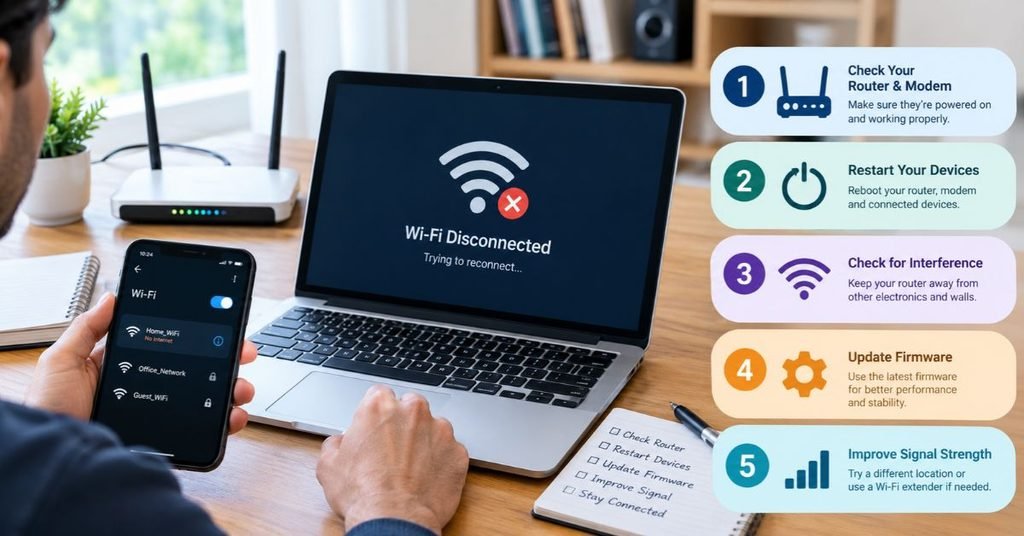
Start with the first step and test the connection after each change. Changing everything at once makes it impossible to know what worked.
The first step is to restart your modem and router properly
Power both devices off, wait at least 30 seconds, then turn on the modem first. Give it two minutes to sync before powering on the router.
This clears memory leaks and forces a fresh connection with your ISP. If a restart fixes the problem for a few days only, suspect overheating or a firmware bug.
The second step is to change the Wi-Fi channel and band
Log in to your router’s admin page, usually at 192.168.0.1 or 192.168.1.1. 2.4 GHz channels should be set manually to 1, 6, or 11, depending on how crowded they are.
A free Wi-Fi analyzer app can show nearby networks and their channels. If your router supports 5 GHz, move high-priority devices like laptops and streaming boxes there.
Step 3: Update Router Firmware
Check the manufacturer’s support page for your exact model, or use the update option inside the admin panel. Firmware updates often include fixes for connection stability and security holes.
Back up your settings before updating, and never power off the router during the process.
Step 4: Update or Reinstall the Network Adapter Driver
Right-click Network adapters in Device Manager, expand Wireless adapters, and then choose Update driver. why does my Wi-Fi keep disconnecting? If that fails, download the latest driver from the laptop or adapter maker’s website.
A clean reinstall can also help. Uninstall the device, restart the PC, and let Windows reinstall it.
Step 5: Disable Adapter Power Management
In Device Manager, open your wireless adapter’s Properties and go to the Power Management tab. Untick “Allow the computer to turn off this device to save power.”
This single setting resolves a surprising share of laptop disconnects, especially after sleep.
Step 6: Switch to a More Reliable DNS Server
Sometimes the Wi-Fi link is fine but DNS lookups fail, which feels like a disconnection. Try public DNS servers such as Cloudflare (1.1.1.1) or Google (8.8.8.8) in your router or device settings.
If browsing becomes faster and more consistent, your ISP’s default DNS was the weak link.
Step 7: Reset Network Settings
On Windows, run these commands in an elevated Command Prompt, then restart:
netsh winsock reset
netsh int ip reset
ipconfig /flushdns
On phones, use “Reset Network Settings” and re-enter your Wi-Fi password. Corrupted profiles are cleared, preventing repeated authentication attempts.
Hardware Solutions When Software Fixes Fail
If the steps above did not help, the problem is likely physical. Hardware limits cannot be patched away.
Reposition Your Router
Place the router in a central, elevated spot, away from walls, metal shelves, and appliances. Keep it out of closed cabinets so heat can escape.
Point external antennas in different directions, with one vertical and one horizontal, to cover more orientations.
Add a Mesh System or Access Point
A single router struggles in large or multi-storey homes. A mesh Wi-Fi system places several nodes around the house under one network name, so devices roam smoothly instead of clinging to a weak signal.
For the best stability, connect nodes with Ethernet cables (wired backhaul) rather than relying on wireless links between them.
Upgrade to Wi-Fi 6 or Wi-Fi 6E
Older Wi-Fi 4 and Wi-Fi 5 routers handle many simultaneous devices poorly. Wi-Fi 6 uses OFDMA to serve multiple clients at once, which reduces congestion in busy homes.
Wi-Fi 6E and Wi-Fi 7 add the 6 GHz band, which is far less crowded and avoids most legacy interference.
Use Ethernet for Fixed Devices
Desktops, game consoles, and smart TVs that never move should be wired. Taking a device off Wi-Fi frees up airtime for the rest.
Ethernet is also the fastest way to confirm whether the problem lies with Wi-Fi itself or with your internet service.
Pro-Tip / Security Note: An unstable network is sometimes a compromised one. Unknown devices on your network, or a router running years-old firmware, can drain bandwidth and cause drops. Check your router’s connected-device list, change the admin password from its default, and use WPA3 (or WPA2-AES if WPA3 is unavailable). Disable WPS and remote administration unless you genuinely need them.
When to Contact Your ISP or Replace Equipment
If every device drops at once and a wired connection also fails, the fault sits upstream. Check your modem’s status lights and log in to its diagnostics page to look for signal errors.
Call your provider if you see repeated “T3 timeout” or “T4 timeout” entries, or very low downstream power levels. These point to line faults that only a technician can repair.
Consider replacing your router if it is more than five or six years old, no longer receives firmware updates, or fails under normal load. Equipment that old often cannot keep up with modern streaming, cloud backups, and smart-home traffic.
Final Thoughts
So, why does my Wi-Fi keep disconnecting? The answer is rarely a single dramatic fault. It is usually a mix of crowded channels, weak coverage, aging hardware, and device-level settings.
Fix the cheap and simple items first: restart the router, change the channel, update firmware, and disable adapter power saving. If the problem persists, rethink your hardware with better placement, a mesh system, or a Wi-Fi 6 router.
As homes add more connected devices every year, a stable network is becoming basic infrastructure. For more practical networking guides, router comparisons, and troubleshooting walkthroughs, keep following Tech Sprinto.
Regular short drops usually mean interference, an overheating router, or an adapter driver problem. Change your Wi-Fi channel, update the driver, and disable power-saving on the adapter first.
The operating system powers down the wireless adapter to save energy, and it sometimes fails to reconnect properly on wake. Turn off the adapter’s power-management option in Device Manager and update your driver.
Yes. Every router has limits on simultaneous clients and total throughput, and older models struggle once dozens of devices are active. Moving to Wi-Fi 6 or enabling QoS rules can help considerably.
It depends on your layout. 2.4 GHz reaches farther and passes through walls better, but it is more congested. 5 GHz is faster and cleaner at close range, so use it wherever your signal is strong enough.
Warning signs include frequent reboots, devices dropping all at once, a very hot case, and instability that returns soon after every restart. If firmware updates and a factory reset do not help, replace the unit.
